Lab 0: Environment Setup#
Introduction#
In Lab 0, you will prepare the development environment for the future labs. You should install the required toolchain and use it to build a bootable image for OrangePi RV2.
Goals of this lab#
Install the RISC-V toolchain and emulator on your host system.
Learn the fundamentals of cross-platform bare-metal development.
Build and boot a minimal kernel image on QEMU and OrangePi RV2.
Important
This lab is an introductory exercise.
It is not graded, but completing all the Todo parts is essential
to ensure smooth progress in subsequent labs.
Skipping them may result in difficulties later on.
Note
The Key Stone® K1 User Manual V6.1 is the authoritative reference required for driver implementation and system configuration. For board setup, consult the official preparation guide. See External References for additional resources.
Cross-Platform Development#
Note
This lab is designed and tested primarily on Linux. While you may attempt the tasks on macOS or Windows (via WSL), these environments are unsupported and may trigger unexpected issues. Please proceed with caution, as TA assistance is limited.
Cross Compiler#
The Orange Pi RV2 uses the Ky X1 SoC with an octa-core 64-bit RISC-V processor. To develop on non-RISC-V systems, you must use a cross-compiler to generate the required 64-bit RISC-V machine code.
Todo
Install the cross compiler gcc-riscv64-unknown-elf on your host computer.
Linker#
Linkers are often invisible because compilers use default scripts automatically (run ld --verbose to view yours). However, in bare-metal programming, you must manually define the memory layout yourself.
The following is a linker script template. You will extend it in a future lab.
Todo
Save the following linker script as linker.ld on your host computer.
SECTIONS
{
    . = 0x80200000;
    .text : { *(.text) }
    .rodata : { *(.rodata) }
    .data : { *(.data) }
    .bss : { *(.sbss) *(.bss) }
}
QEMU#
In cross-platform development, using an emulator can simplify the process of validating your code before testing it on physical hardware. QEMU provides such an environment for early-stage development and testing.
Warning
QEMU provides a machine option virt (a general-purpose virtual board),
but it does not fully replicate the behavior of a real OrangePi RV2 board.
You should always verify your code on actual hardware as well.
Todo
Install qemu-system-riscv64 on your host computer.
From Source Code to Kernel Image#
At this point, you should have a basic understanding of the cross-platform toolchain. The following steps will guide you through using these tools in practice.
From Source Code to Object Files#
Source code is converted to object files by a cross compiler.
Todo
Save the following assembly code as a.S on your host computer.
.section ".text"
_start:
  wfi
  j _start
Then, compile the assembly code to an object file with the following command:
riscv64-unknown-elf-gcc -c a.S
From Object Files to ELF#
A linker links object files to an ELF file. An ELF file can be loaded and executed by program loaders. Program loaders are usually provided by the operating system in a regular development environment. In bare-metal programming, ELF can be loaded by some bootloaders.
Todo
Link the object file to an ELF file with the following command:
riscv64-unknown-elf-ld -T linker.ld -o kernel.elf a.o
From ELF to Kernel Image#
The OS kernel is initially compiled as an ELF file.
To make it suitable for booting, we typically convert it into a raw binary image using objcopy.
This binary image can then be included as part of a Flattened Image Tree (FIT) for use by the bootloader.
Todo
Convert the ELF file to a raw binary kernel image with the following command:
riscv64-unknown-elf-objcopy -O binary kernel.elf kernel.bin
Check on QEMU#
After building, you can use QEMU to see the dumped assembly.
Todo
Build your first kernel image, and check it on QEMU with
qemu-system-riscv64 -M virt -kernel kernel.bin -display none -d in_asm
Warning
While QEMU is useful for early testing, it lacks emulation for many Orange Pi RV2-specific devices. Success in QEMU does not guarantee correct behavior on physical hardware.
Deploy to OrangePi RV2#
From Kernel Image to FIT Image#
The bootloader on the OrangePi RV2 board does not typically boot ELF or raw kernel binaries directly. Instead, it expects a single file in the Flattened Image Tree (FIT) format, which packages the kernel image, the device tree blob (DTB), and optionally an initramfs.
To generate a FIT image, you will need the mkimage tool, which is part of the u-boot-tools package.
sudo apt-get install u-boot-tools
You also need to create a configuration file named kernel.its, which specifies
the contents and layout of the resulting FIT image. This file must reference the following components:
kernel.bin– the raw kernel image generated earlierx1_orangepi-rv2.dtb– the device tree for OrangePi RV2initramfs.cpio– an optional root filesystem archive or initialramdisk(not included in this lab; it will be introduced in a later lab. Be sure to remove the corresponding section from the.itsfile for now to avoid build errors)
Below is a minimal example of a valid kernel.its file that includes only the kernel and device tree:
/dts-v1/;
/ {
    description = "U-boot FIT Image for Orange Pi RV2";
    #address-cells = <2>;
    images {
        kernel {
            description = "Kernel Image";
            data = /incbin/("kernel.bin");
            type = "kernel";
            arch = "riscv";
            os = "linux";
            compression = "none";
            load = <0x0 0x00200000>;
            entry = <0x0 0x00200000>;
        };
        fdt {
            description = "Flat Device Tree";
            data = /incbin/("x1_orangepi-rv2.dtb");
            type = "flat_dt";
            arch = "riscv";
            compression = "none";
            load = <0x0 0x31000000>;
        };
    };
    configurations {
        default = "config-1";
        config-1 {
            description = "NYCU OSC RISC-V KERNEL";
            kernel = "kernel";
            fdt = "fdt";
        };
    };
};
The required device tree file can be download here x1_orangepi-rv2.dtb
Todo
Store kernel.its and x1_orangepi-rv2.dtb on your host computer and build kernel.fit with following instruction:
mkimage -f kernel.its kernel.fit
Flash Bootable Image to SD Card#
We have prepared a complete bootable bootable image for this lab.
Note
The image is already partitioned, contains the boot firmware, and includes a FAT32 filesystem. To update your kernel in the future, simply mount the SD card and replace the kernel.fit file with your new version.
You can write it to your SD card using the dd command:
sudo dd if=opirv2-sdcard.img of=/dev/sdX bs=4M status=progress conv=fsync
Warning
Replace /dev/sdX with the actual device name of your SD card.
You can check the device name using lsblk.
Writing to the wrong device may cause data loss.
Todo
Prepare your SD card for booting OrangePi RV2.
Interact with OrangePi RV2#
After setting up your SD card and inserting it into the OrangePi RV2 board, you can interact with the system via UART to verify that your setup is functioning correctly.
Follow these steps to test the UART connection:
Connect a UART-to-USB adapter to your host machine.
Use a serial console program (e.g.,
screen) to open the serial port with the correct settings:
sudo screen /dev/ttyUSB0 115200
Connect the TX, RX, and GND pins from the UART adapter to the corresponding UART header on the OrangePi RV2 board. Refer to the diagram below for the correct wiring:
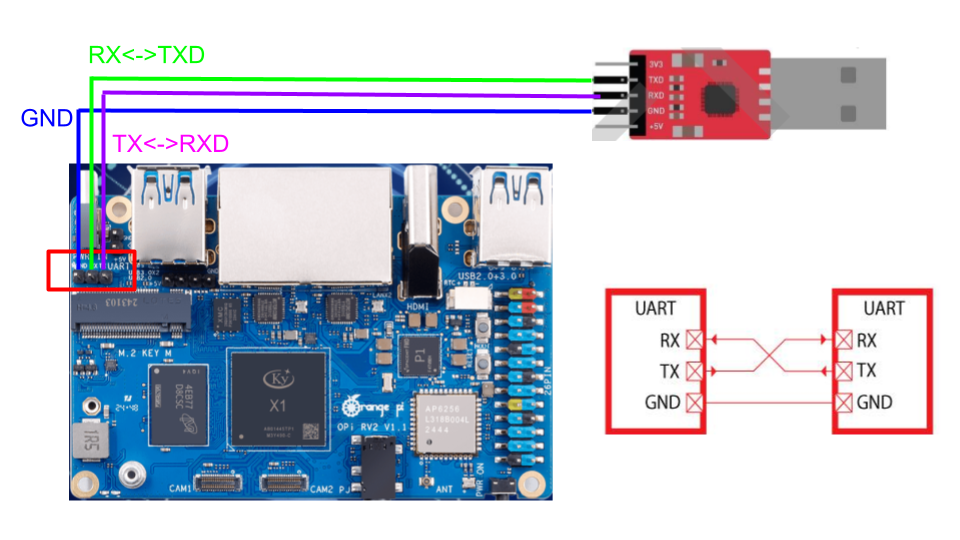
Power on the OrangePi RV2. Once booted, try typing on your keyboard. You should see the characters echoed back in your serial console.
Todo
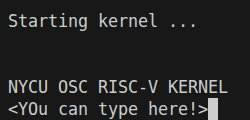
Test the UART connection with your OrangePi RV2 board. Output should looks like this:
Note
If nothing appears on the console, double-check the wiring, baud rate, and whether the kernel image was placed correctly.
Debugging#
Debug on QEMU#
QEMU supports basic debugging features such as memory/register inspection and remote debugging with GDB. This allows you to analyze program behavior before deploying to physical hardware.
To begin, install GDB with multi-architecture support on your host machine:
Todo
Install gdb-multiarch on your host computer.
Then launch QEMU in debug mode using the following command:
qemu-system-riscv64 -M virt -kernel kernel.bin -display none -S -s
This starts QEMU in a paused state and opens a debugging port (typically at localhost:1234).
In a separate terminal, start GDB and connect to the running QEMU instance:
gdb-multiarch
(gdb) file kernel.elf
(gdb) target remote :1234
You can now use GDB commands to inspect registers, memory, or step through instructions.
Note
Ensure the kernel.elf file includes debugging symbols (e.g., compiled with -g flag) for full functionality.
Debug on Real OrangePi RV2#
When working on real hardware, debugging options are more limited. You can insert serial print statements to trace control flow or variable values.
JTAG debugging is not covered in this course, but advanced users with access to JTAG hardware are welcome to explore this option independently.